Message Exporter — User Guide
Last updated: July 2026 · Applies to Message Exporter 1.2 and later on macOS 14 or newer
In one paragraph: install from the Mac App Store, grant access to your Messages folder when the open panel appears, choose a conversation, click Export, pick a time range and format, and save the file. Every step happens on your Mac.
Contents
1. Installing and first launch
Message Exporter is distributed through the Mac App Store, so it is signed, notarised, and updated by macOS. It requires macOS 14 Sonoma or later and runs natively on Apple silicon and Intel Macs.
Launch it from Applications or Spotlight. On first launch you'll be asked to sign in — with Apple, Google, or an email address. An account is how a Pro subscription follows you to a second Mac; it is not used for anything to do with your messages.
2. Granting Messages access
Message Exporter is a sandboxed app, which means macOS blocks it from reading your Messages database until you explicitly point it there. The app explains what it needs, then opens the standard macOS open panel at your Messages folder — usually ~/Library/Messages.
The panel is titled Messages Accessand reads “Click Allow to grant access. Nothing leaves your Mac.” The folder is already selected, so you do not need to navigate anywhere — just click Allow. If you land in a different folder, press ⇧⌘G, type ~/Library/Messages, press Return, then click Allow.
You do not need Full Disk Access. If another Messages tool has asked you to enable it in System Settings, Message Exporter does not — the folder you pick in the open panel is the only thing it can read. macOS remembers the choice, and you can revoke it by moving the app to the Trash or by resetting its sandbox permissions.
3. Contacts access (optional)
macOS stores message threads against phone numbers and email addresses, not names. If you allow access to Contacts, Message Exporter can show “Alex Johnson” instead of “+1 555 0142”. This is entirely optional:
- Open Privacy Settings — take you to the macOS pane where you can allow it.
- Continue with Numbers — carry on without names.
- Don't Ask Again — dismiss the prompt for good.
Contact names are used only for display and inside the files you export. They are never transmitted.
4. The main window
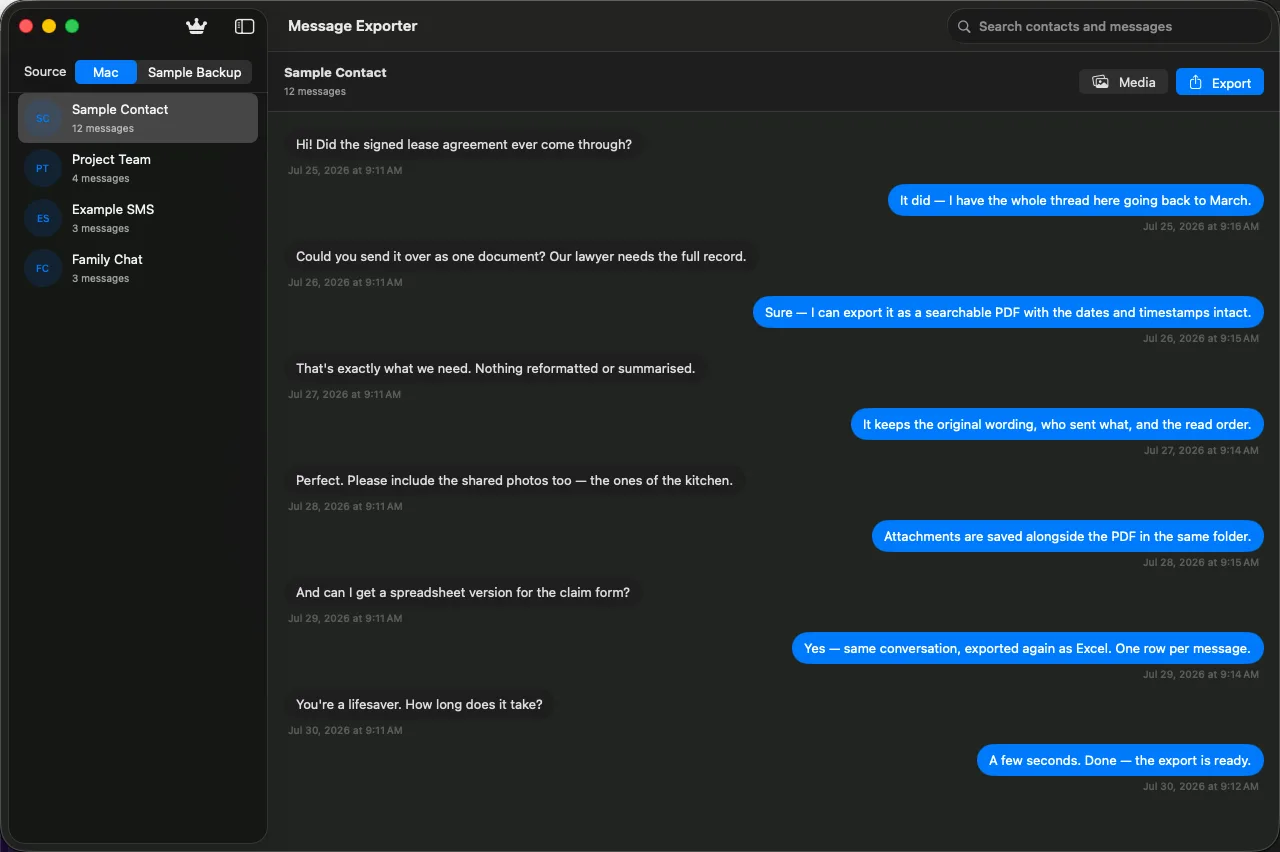
- Sidebar— every conversation Message Exporter can see, with each one's message count and service (iMessage or SMS). The search field at the top filters this list.
- Add iPhone Backup… — at the bottom of the sidebar, for adding a local encrypted backup as an extra source.
- Source picker — in the toolbar, once you have more than one source. Switches between your Mac and any backup you added.
- Media — opens Manage Media for the selected conversation.
- Export — opens the export sheet for the selected conversation.
- Upgrade to Pro— shown until you subscribe; replaced by a “You're on Pro” indicator afterwards.
If you close the window, reopen it from the Window menu or with ⌘0.
5. Browsing and searching
Select any contact or group in the sidebar to read the thread on the right, with sent and received messages in bubbles and dates in order. This is a preview — the app never modifies your Messages data.
The search field matches both contact names and the text inside messages, so searching for invoicewill surface the conversations where that word was used even if you can't remember who you were talking to.
6. Exporting a conversation
Select a conversation, click Export, and the export sheet opens with four controls.
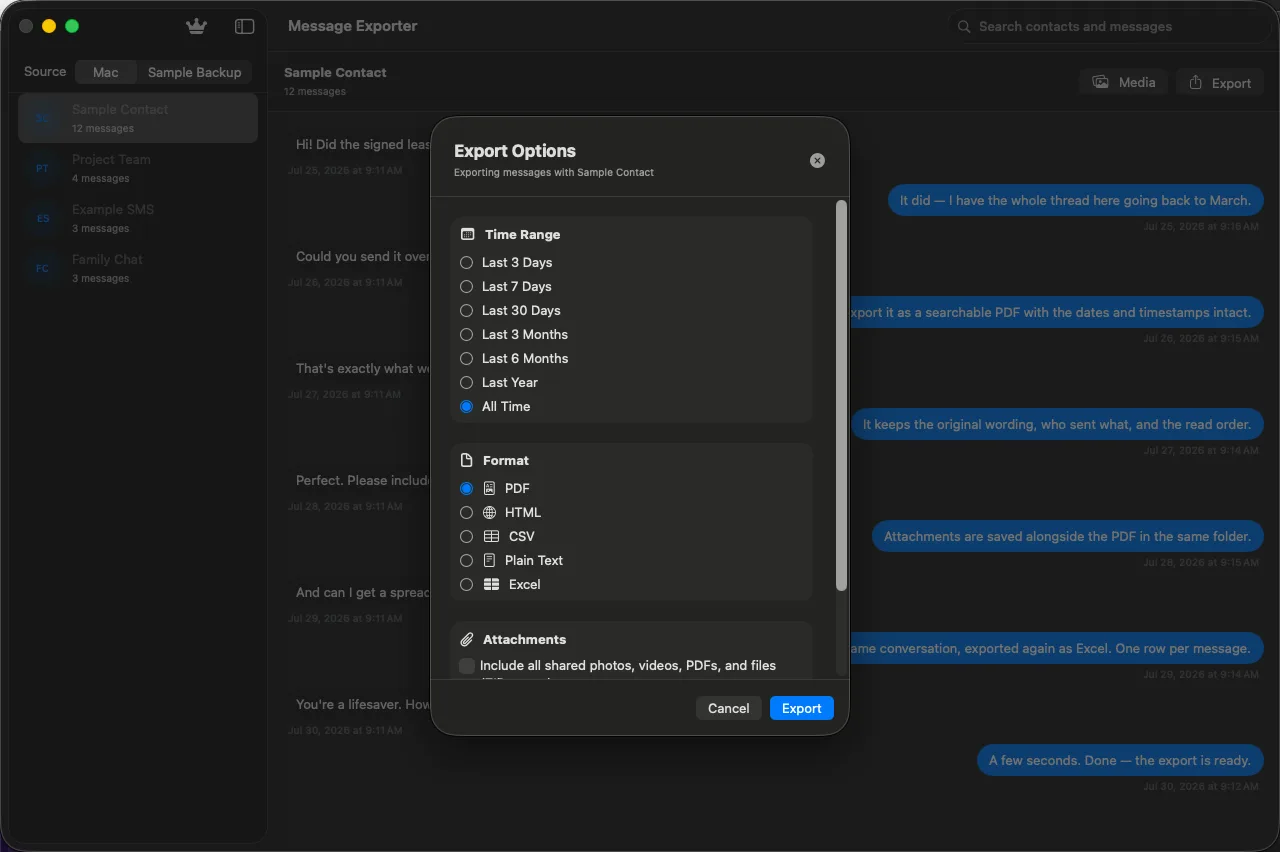
- Time Range — the window of history to include. The free plan is limited to the last 3 days; Pro adds 7 days, 30 days, all time, and custom ranges.
- Format — PDF, HTML, CSV, Excel, or plain text. Plain text is available on the free plan; the rest are Pro.
- Attachments — off by default. Turn it on to bundle the shared files with the transcript in a ZIP. Choose all files in range, or click Choose… to hand-pick.
- The count — the sheet tells you how many messages fall in the range before you click Export, so an empty range never surprises you.
Click Export, choose where to save, and a progress bar appears — PDFs render page by page, attachments are copied and zipped. Large exports can be cancelled while they run.
7. Which format to choose
- PDF — the one to pick for filing, printing, or handing to someone else. Paginated and readable, with the conversation title at the top.
- HTML — keeps the chat-bubble look and opens in any browser. Good for sharing a readable copy without a PDF viewer.
- CSV — one row per message with date, direction, message text, and attachment names. The right choice for filtering or importing elsewhere.
- Excel (.xlsx) — the same columns as CSV, as a real workbook, for sorting and pivoting in Numbers or Excel.
- Plain text — the smallest, most portable option, and the format the free plan uses.
Using exports as client records
If you work with clients over messages, export one conversation per contact and keep the file in that client's folder. Every format carries the date and time of each message. Choose All Time or a custom range, tick the attachments option to bring every shared photo, video, PDF and file along in a ZIP, and use PDF for filing or Excel for the books. Message Exporter makes files from your own messages; it is not legal advice and does not certify a record for any court or regulator.
8. Manage Media
Attachments in Messages live in a folder of randomly named subdirectories, which makes recovering a photo someone sent you last spring genuinely painful. Media in the toolbar opens a browser for everything shared in the selected conversation.
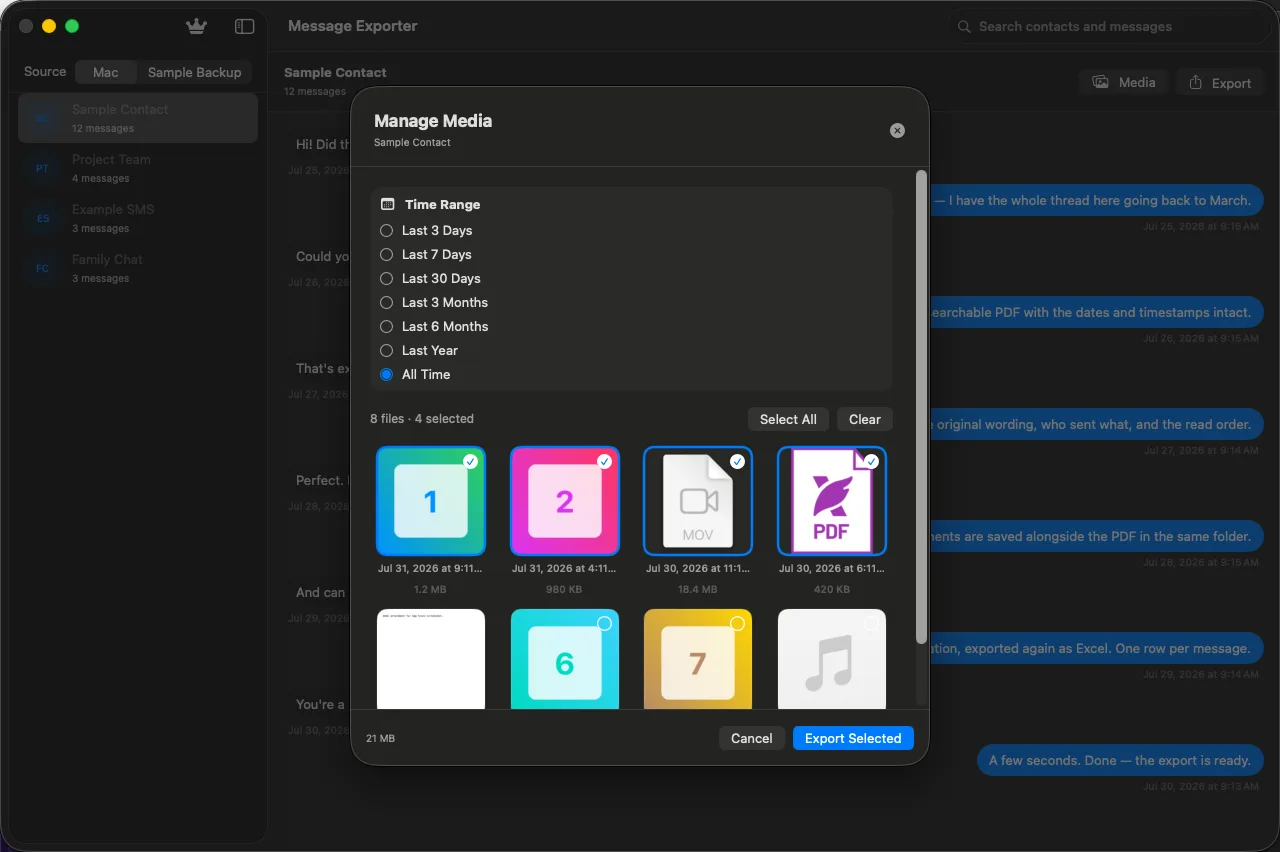
- Filter by the same time ranges as the export sheet.
- Select All or Clear, or click individual files. The header keeps a running count of files shown and files selected.
- Export Selected saves the chosen files. Opened from inside the export sheet instead, the button reads Use Selection and hands your picks back to the export.
The free plan shows and exports media from the last 3 days; Pro covers the full history.
9. Importing an iPhone backup
Conversations that never synced to your Mac can still be read from a local iPhone backup. Make the backup first, in Finder: connect the iPhone, select it in the sidebar, tick Encrypt local backup, set a password, and back up.
Then in Message Exporter:
- Click Add iPhone Backup… at the bottom of the sidebar.
- Choose the backup folder — normally inside ~/Library/Application Support/MobileSync/Backup/.
- Enter the backup password if it's encrypted.
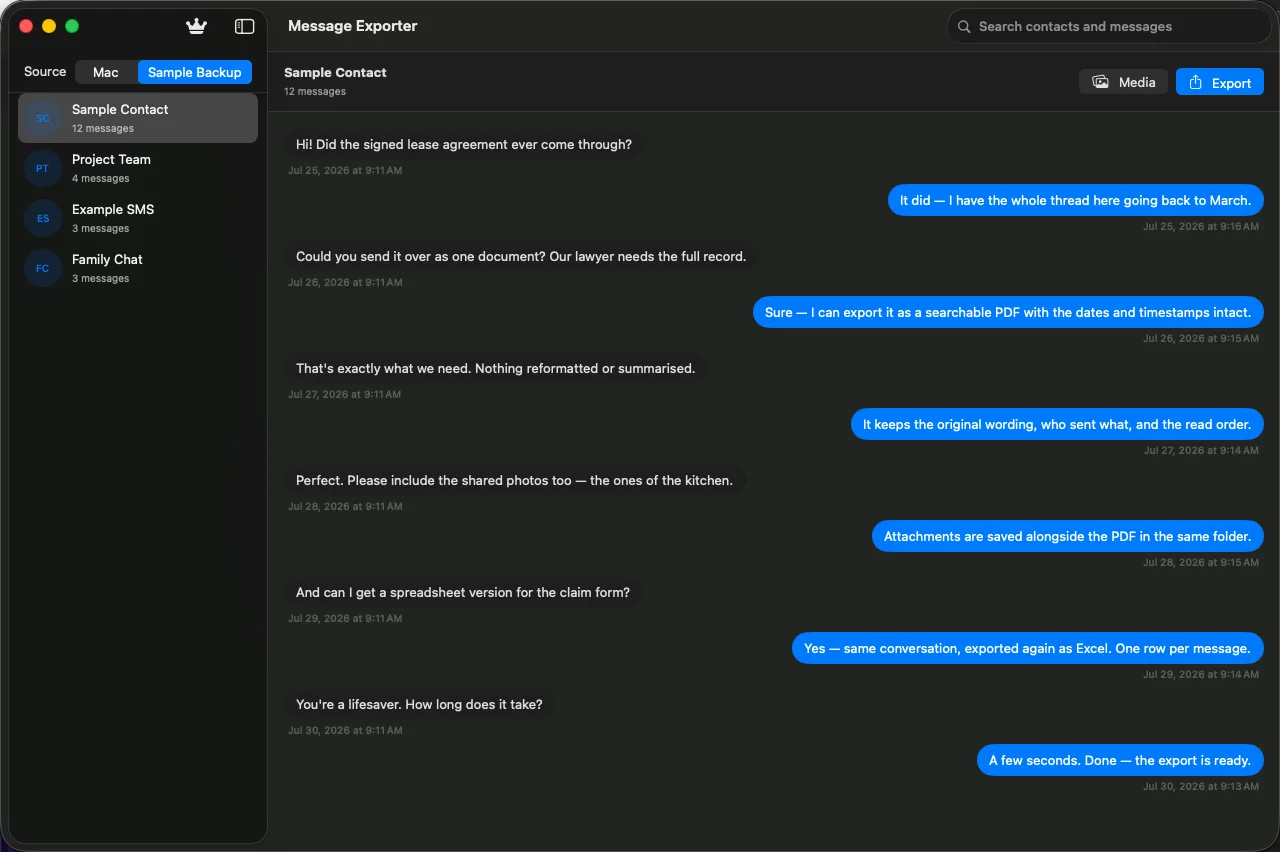
- Use the Source picker in the toolbar to switch between your Mac and the backup.
Decryption happens on your Mac. The backup password is used locally to open the backup and is never transmitted. Backups made to iCloud rather than to this Mac cannot be read — Message Exporter only reads backups stored on your own disk.
10. Accounts and Pro
Sign in with Apple, Google, or email. The account exists so that a Pro subscription unlocks the app on any Mac you sign in to; it holds your email address, optionally your name, and whether your plan is active.
Pro is $4.99 per month, purchased through the App Store and billed to your Apple Account. It renews monthly until cancelled. To cancel, open System Settings → Apple Account → Subscriptions; you keep Pro features until the end of the period already paid for.
If you have paid but the app still shows the free tier, open the upgrade sheet and choose Restore Purchases, making sure you're signed in to the same Apple Account you bought with.
11. What the free plan includes
The free plan is deliberately usable on real data rather than a locked demo. You get:
- Browsing, searching, and reading every conversation, with no limit
- Export of the last 3 days of any thread, as plain text
- Shared photos, videos, PDFs and files from those same 3 days
- Adding and browsing local iPhone backups
Pro adds the longer time ranges, the four other formats, and full attachment export.
12. Troubleshooting
No conversations appear
Access to the Messages folder probably wasn't granted, or the wrong folder was chosen in the open panel. Quit and relaunch the app and pick ~/Library/Messages — in the open panel you can press ⌘⇧G and type the path. Also confirm Messages itself is signed in and has history on this Mac.
Contacts show as phone numbers
Contacts access is off. Allow Message Exporter in System Settings → Privacy & Security → Contacts, then relaunch. Numbers with no matching contact card stay as numbers.
A shared file is missing from Manage Media
Attachments that were never downloaded to this Mac — for example, media in a conversation your Mac only partially synced — have no file on disk to collect. Open the conversation in Messages, let the attachment download, then re-scan. Also check the time-range filter; on the free plan it is limited to the last 3 days.
The backup won't open
Confirm it is a backup made to this Mac and not to iCloud, that you picked the backup folder itself (the one named with a long identifier), and that the password matches the one set when encryption was enabled. A backup made on a different Mac and copied over works, as long as you know its password.
A PDF export is taking a long time
PDF rendering is per-page, so a multi-year thread with thousands of messages takes a while. The progress sheet shows the page count and can be cancelled. If you only need the data, CSV or Excel finishes far faster.
13. Updates
Updates arrive through the Mac App Store. If the app hasn't updated itself, open the App Store, go to Updates, and press ⌘R to refresh the list — the store caches for a while after a new version goes live.
Still stuck? Email info@softflourish.com or read the support page.